Get the app
ZF BidMart, on your home screen.
ZF BidMart installs straight from your browser — no app store needed. It opens in its own window, like any other app, and its screens keep working offline after your first visit.
Google Play — coming soonAn Android app on Google Play is planned. Until then, install the web app — it works the same way.
Already added? Open ZF BidMart from your Home Screen.

01 — Install steps
Every device, step by step.
The steps for your device open first. Installing is optional: the app works the same in your browser.
Chrome, Edge or Samsung Internet
Install ZF BidMart
- Tap the browser menu ⋮.
- Tap Install app or Add to Home screen.
- Confirm with Install.
Add ZF BidMart to your Home Screen
- Tap the Share button (the square with an arrow). On iPhone, tap ⋯ first if you don’t see it.
- Scroll down and tap Add to Home Screen.
- Keep Open as Web App switched on (iOS 26).
- Tap Add.
Works in Safari, Chrome, Edge and Firefox on iOS and iPadOS 16.4 or later.
Safari
Add ZF BidMart to your Dock
- In the menu bar, choose File → Add to Dock…
- Keep the name ZF BidMart and click Add.
Needs Safari 17 or later. ZF BidMart then opens in its own window from the Dock.
Chrome or Edge
Install ZF BidMart
- Click the install icon at the right end of the address bar — or open the browser menu (⋮ or …) and choose Install ZF BidMart… (in Chrome it can sit under Cast, save and share).
- Confirm with Install. ZF BidMart opens in its own window.
Chrome or Edge
Install ZF BidMart
- Click the install icon at the right end of the address bar — or open the browser menu (⋮ or …) and choose Install ZF BidMart… (in Chrome it can sit under Cast, save and share).
- Confirm with Install. ZF BidMart opens in its own window.
Firefox on Android
Add ZF BidMart to your Home screen
- Tap the menu ⋮.
- Tap Install or Add to Home screen.
- Confirm with Add.
Firefox on a computer
Installing from Firefox on a computer
Firefox on desktop can’t install web apps yet.
- Open this page in Chrome or Edge and install ZF BidMart from there.
- On Windows, you can pin this site to the taskbar instead if your Firefox version offers it.
You can also use ZF BidMart right here in Firefox — nothing needs installing.
Open ZF BidMart in your browser
This page is open inside another app’s built-in browser, which can’t install web apps.
- Tap the ⋯ or share menu in this app.
- Choose Open in browser (it may say Open in Safari or Open in Chrome).
- Install ZF BidMart from there.
No menu option? Copy the link and paste it into your browser.
02 — Offline
What works without a signal.
The installed app and the app in your browser work the same way offline. This website itself is an ordinary site and needs a connection.
The app’s screens
After your first visit with a connection, every screen of the app opens offline — the feed, auctions, Sabji Live, ZF Freezer, your orders and your account.
Your bag, cart and orders
They are saved on your device, so they are still there offline, and after you close the app.
Photos, not videos
Photos you have already seen stay available. Videos need a connection: offline you see a still picture with “Offline — video unavailable”.
A clear offline page
If a screen can’t load, the app says you’re offline and offers the feed and your orders, which are saved on this device.
Try it first
No install? No problem.
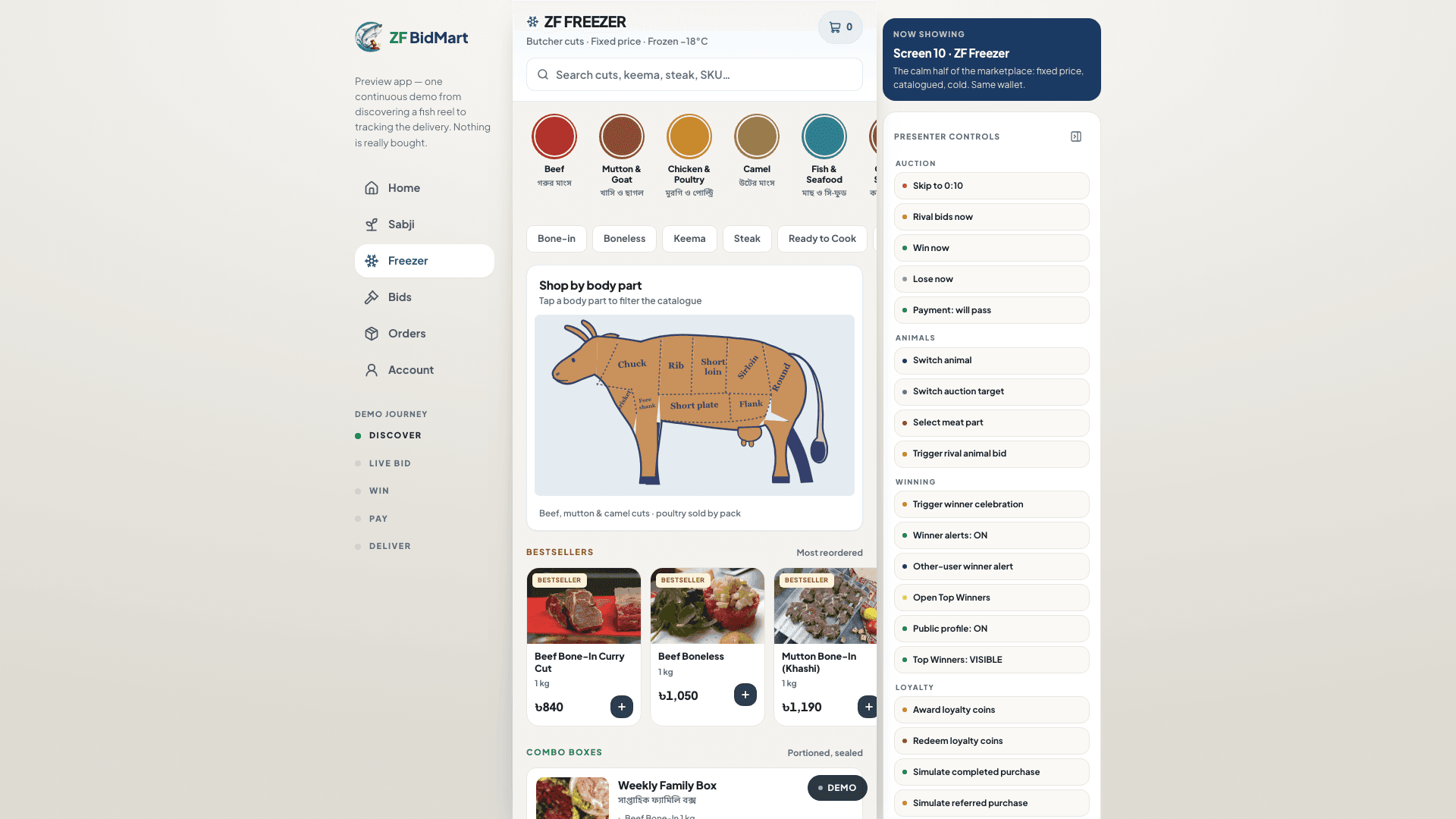
Open the preview in your browser and look around: bid on a lot, call out a weight on Sabji Live, or fill a freezer cart. Nothing is charged — it’s a demo.